|
1-The
Daz Stephanie copyright , doesn't allow to use the original Cr2 to create and to distribute some
customized models.
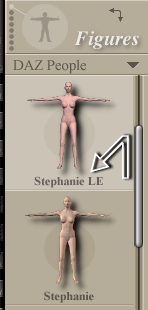
To such purpose, Daz has created "Stephanie Le" that it is a Cr2 to which
miss many gods original morph of the complete model, but
it can be customized and distributed
|
|
|
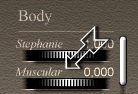
2-If we observe the original cr2 of Stephanie, and we select the group "Body", we see that the
Stephanie body has different "Full Body Morph" among which
"Muscular."
|
|
|
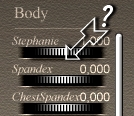
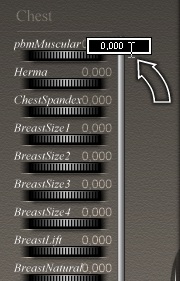
3-If we open the model "Stephanie Le", (that "customizable", we see how different morphs of the complete model miss, among these also
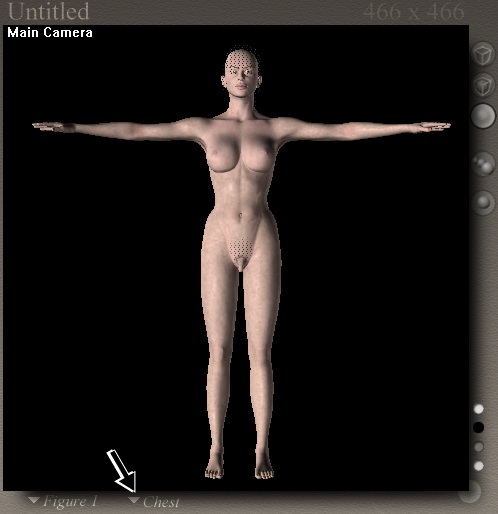
"Muscular."
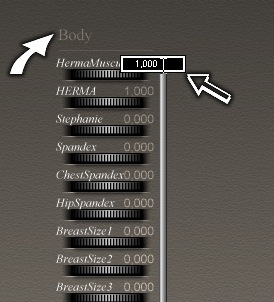
|
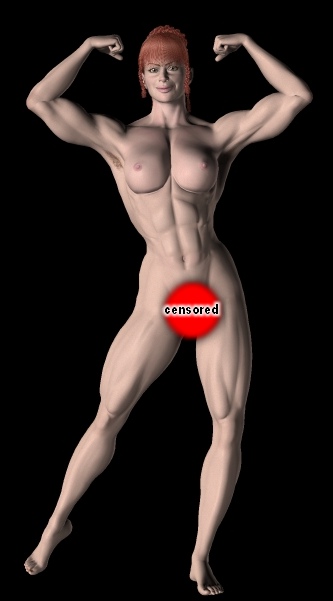
|
4-We can complete however and to improve our personnel model transferring on this the morphs of the
Stephanie complete model.
There are different ways to transfer some morphs from a model to the
other, A spelndid utility
named:"MORPH Manager", it allows us to move the morphs among two figures to practical, simple and fast way.
Morph Manager 4.0 have been realized by Mason (Thanks Mason!), and it is
downlodable free in the section utilities of www.renderosity.com
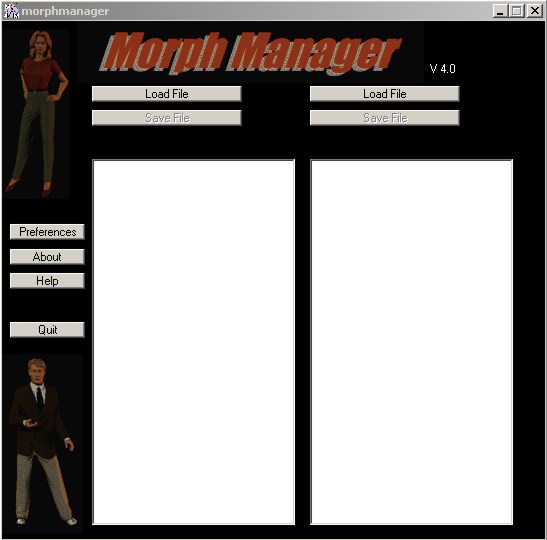
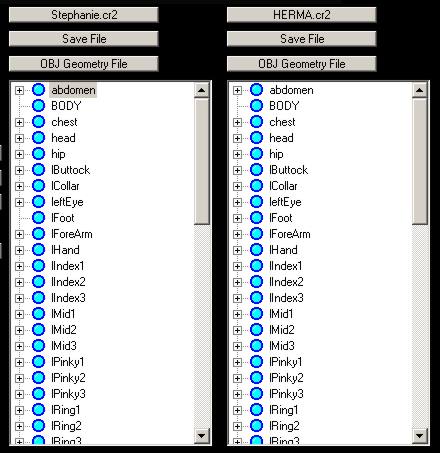
The figure of side
is the initial screen of the program.
We will use Morph Manager to transfer the Stephanie
"Muscular" morph on the Herma character.
Here as us we have to do:
|
|
|
5-For first thing,
open the original model "Daz Stephanie": click on the button "Load File" to the
left.
In the window of left it will be loaded the
Stephanie model and they will appear all the names of the
groups.
Now you reward the button "Load File" to the right and open the model "HERMA" in the window of
right.
Also in this case, in the window to the right all the groups of the cr2 of Herma will
appear.
|
|
|
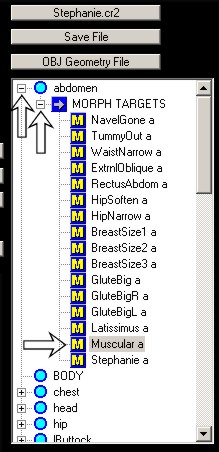
6-In the window to the left,
click on the sign "+" of side to the group "abdomen"
(it opens a new menu titled:"MORPH TARGETS")
Click on the sign "+" of side to the menu
"MORPH TARGETS." All the morphs of this group will be
listed.
Now click With the Right key of the mouse on the morph "Muscular
a"...
|
|
|
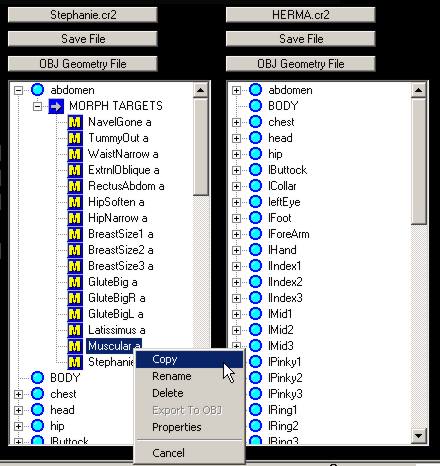
7-A menu will appear with different options.
Select the option
"copy".
|
|
|
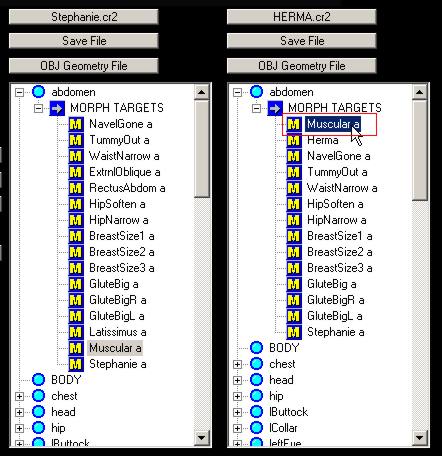
8-Now open the group "abdomen" in the window to your right
(that of Herma), You will see that the morph "Muscular
a" of Stephanie has been copied in the same group of
Herma.
You repeat this operation for all the groups:
(chest, lbuttock, etc.) you select the group and the morph "Muscular
a" of Stephanie (to the left) and copy it in the other figure
(Herma).
NOTICE:You don't copy the morphs of the Stephanie group "hip", because the hip of Herma has a different polygonal conformation from that of Stephanie and the morphs eventually copied they would not have any effect on the hip of
Herma.
|
|
|
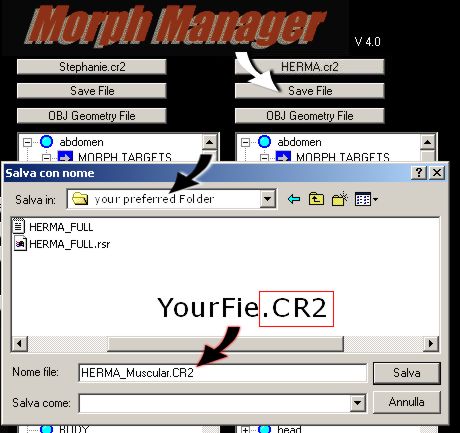
9-When you have finished to copy all the morphs "Muscular" on
Herma, save your job.
Click on the button to the right:
"Save File".
It opens a window,
Choose the folder in which want to save your job and Remembered to Save This New Figure With A New
Name! Otherwise you will ovwewrite that original.
Also remembered to complete the name of the file with the extension ". cr2"
(See
the figure to the right).
|
|
|
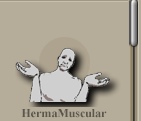
10-Morph Manager doesn't save the image "rsr", therefore when you will open Poser, the new figure will have the usual aspect of the sad dwarf without
"rsr."
Click however on the figure and open it in the Poser scene.
|
|
11-The
character doesn't seem changed, but ...
Now many gods groups that compose it have a new morph
named: "pbmMuscular"
The morphs of a cr2 can have two names: an internal name (in our case "Muscular
a" seen in Morph Manager"), and an external name ("pbmMuscular"), visible in
Poser.
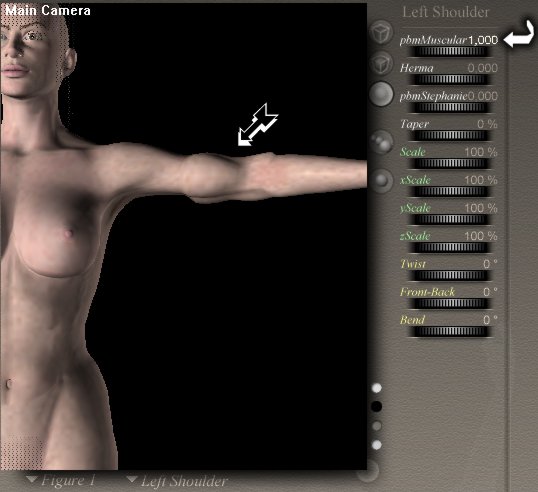
Select any group of Herma, for example "Left Shoulder", and it applies the value "1" to the morph
"pbmMuscular."
Make the same thing for all the other groups
(UperNek, Neck, chest, collar ecc.)
|
|
|
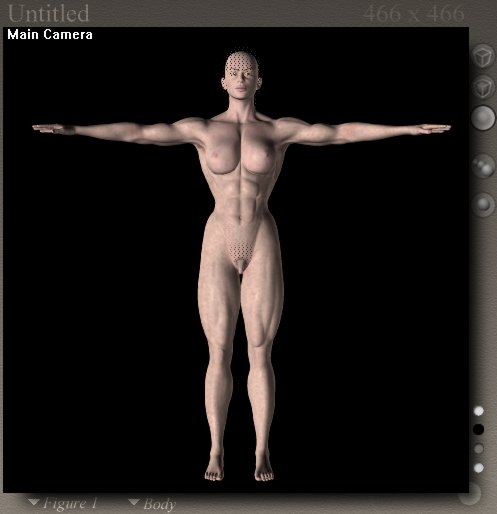
12-When you will ended, Herma will have the aspect represented in the figure of side.
Before saving this new figure, it is better to create a New "Full Body
Morph." In this way, you can apply all the morphs "Muscular" to your figure without acting on every single
group.
We see whether to do...
|
|
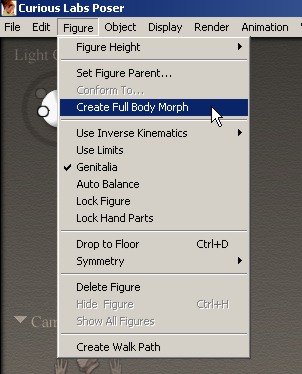
13-Select the menu "File"--- ->"Create Full Body
Morph"
In the dialogue box that appere,
choose a name for yours new Full Body Morph, for example
"Herma Muscular."
Et
voilà...The full body morph has been created... you don't believe
it?
|
|
|
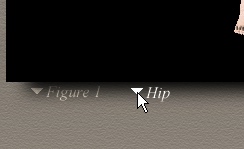
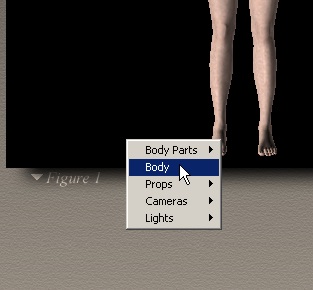
14-In the Menu
"Element" select the group:
"Body"...
|
|
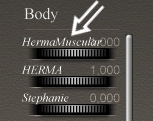
15-you will see that a new
"Full Body Morph"
has been added to the list
|
|
|
16-BEFORE SAVING THE FIGURE,
you have to rather perform a boring job.
You are obliged to
reset all the "Muscular" morphs, select group for group and
set the muscular morph on the value Zero.
Ended this job, the figure it will returned to it original aspect
(without muscles).
Now Save This Figure In Your Preferred
POSER librarie.
|
|
17-Cancel the figure from the
Poser scene or selects "New" from the menu "File."
The Poser scene must to be empty.
Now we check if everything works:
-Open the
just saved figure and load it in the Poser scene.
-Click on
the menu "Element group" and select
"Body".
(See the
figure to the right).
|
|
|
18-Set the
"Full Body Morp"
"HermaMuscular" value on 1 .
|
|
|
19-WOW! here is the final result.
Herma has indeed now a mighty physicist!!!
|
|
|
Sorry
my English!
|
The method explained in this Tutorial can be used for any character of Poser.
For example, you can to transfer some morphs among two characters of Victoria or
Michael.
|
|
Arduino
|
More
information on "Herma" character
HERMA CHARACTER by Arduino
|