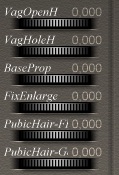
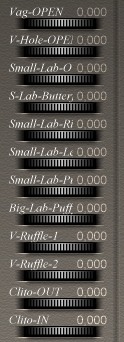
| 1- Load Daz Victoria V3 figure in the Poser scene *note* During these operations avoid changing the figure's position, otherwise the Magic-G! prop won't fit on the figure properly. |

|
| 2- Select the Victoria figure. Open Poser library "Poses" -> "++Magic-G-Prop!"
and apply the pose named: "V3PoseDefault" This pose positions Victoria correctly to receive the Magic-G! prop. *note* After installation you can also apply the pose "Open" for the best view, I suggest you use the camera pose "Magic-G! Set-up" |
 

|
| 3- Open Poser library "Poses" -> "++Magic-G-Prop" Then apply the pose named "MGP-INJ-V3" This pose applies some morphs for fitting the Magic-G! to the Victoria hip. |

|
| 4- Load the Magic-G! figure in the Poser scene
"Figures"->"ApCharacters"->"Magic-G!-Figure-Prop" Do not doubleclick the prop, just click the double checkmark at the bottom of the ApCharacters menu to add it. |

|
| 5- Select the Magic-G! figure Open the Poser menu "Figure"->"Set Figure Parent..."
|
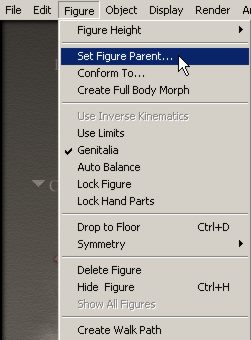
|
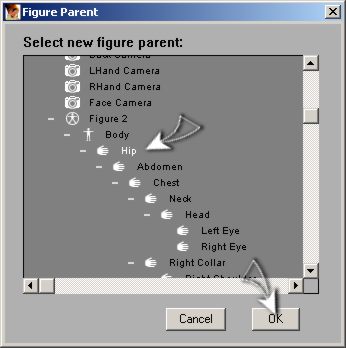
| 6-In the pop-up window scroll down to the Victoria hip, click once and then click "ok". |
|
| 7-Now
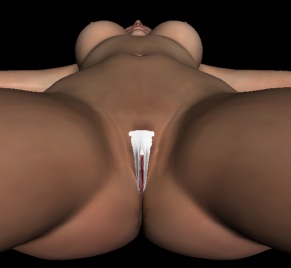
select Victoria figure and apply on Victoria the texture that you prefer. (In this example I use the DAZ texture "! V3NaturalHi") |
|
| 8- Now select the Victoria figure and apply the texture that you
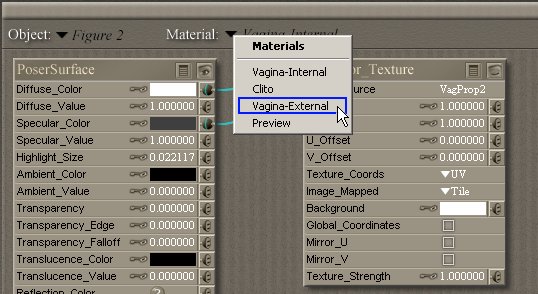
prefer. (In this example I used the DAZ texture "! V3NaturalHi") Select Magic-G! figure Go in the MATERIAL ROOM Select the "Material"menu option -> "Vagina External" IMPORTANT!: Always apply the same Victoria body texture to the Magic-G! "VaginaExternal" |
|
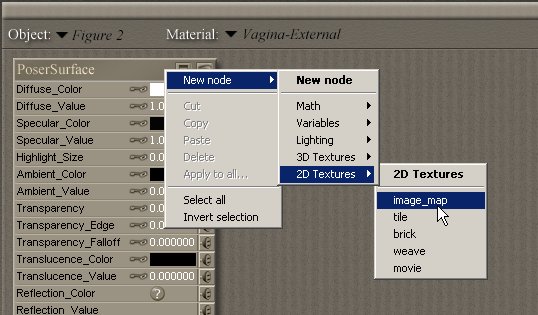
| 9- With the RIGHT mouse click on the "Poser Surface" window and in the pop-up menu select the option ->"New Node" ->"2D texture" ->"Image_map" |
|
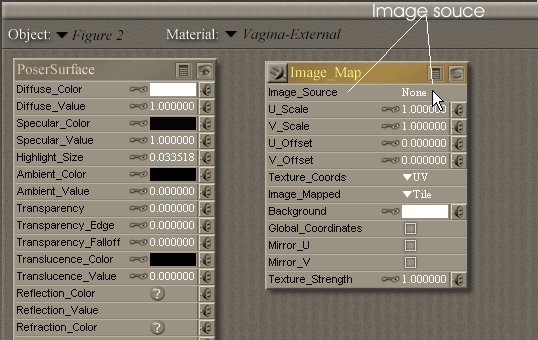
| 10- A new window is open in the Material Room
(Image_map window)
|
|
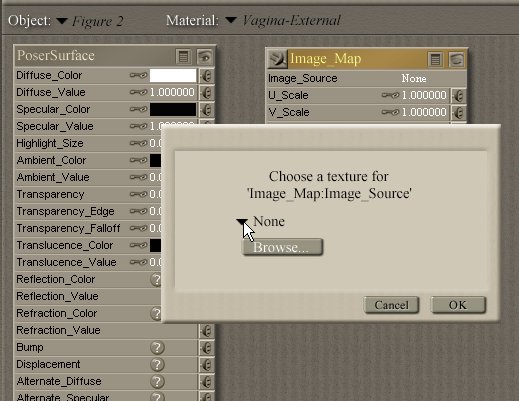
| 11- With the left mouse click on the "Image_souce" option A new pop-up window is open. Now Click on the word "None" |
|
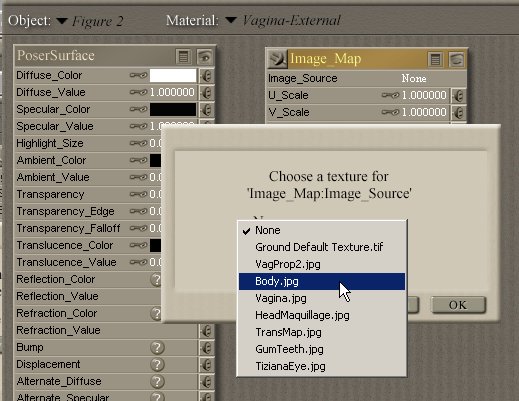
| 12 -In the pop-up menu select the Body texture of your V3 character and click "OK" |
|
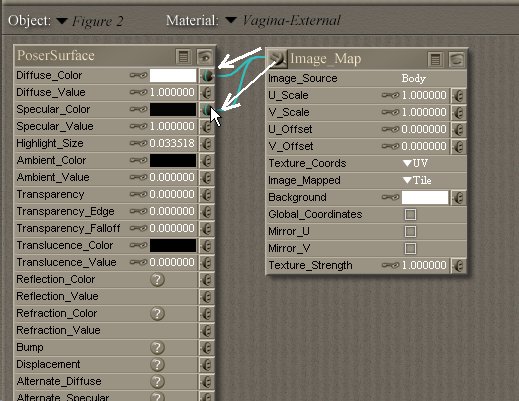
| 13- Now you must click on the Image_Map node (left up corner of the window) and to attach the node to the parameters "Diffuse color" and "Specular Color" of the PoserSurface window. |
|
| If your Victoria texture requires an adjustment of the
Magic-G! genital labia hue, you can use the MAT poses "zG-HUE-Dark" or "zg-HUE-MidDark" for perfectly matching Magic-G! with Victoria's texture. These poses slightly darken the small labia color. |


|
|
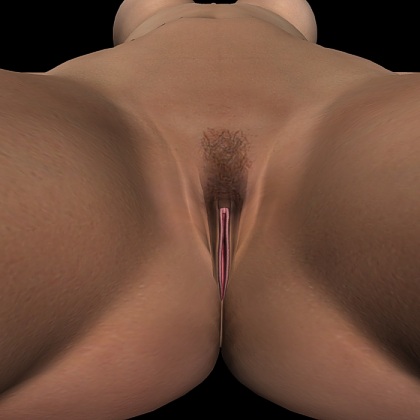
Magic-G! is Ready! |
|